
Home › ChatGPT course: 3 beginner lessons
ChatGPT course: 3 beginner lessons
Last checked
What it does
A general-purpose assistant for writing, explaining, analysing files, making images and researching, with Work and Codex agents for bigger jobs.
Made by OpenAI.
Sign up and log in
- Open chatgpt.com in a browser or install the official ChatGPT app from your phone's app store.
- You can try it without an account in supported regions; creating an account saves your chat history and unlocks more settings.
- Type your request in the message box. Say who it's for, the format and the length you want.
- Reply with follow-ups (“shorter”, “as a table”, “simpler words”) instead of starting over.
- Before sharing anything personal, open Settings → Data controls (see Privacy below).
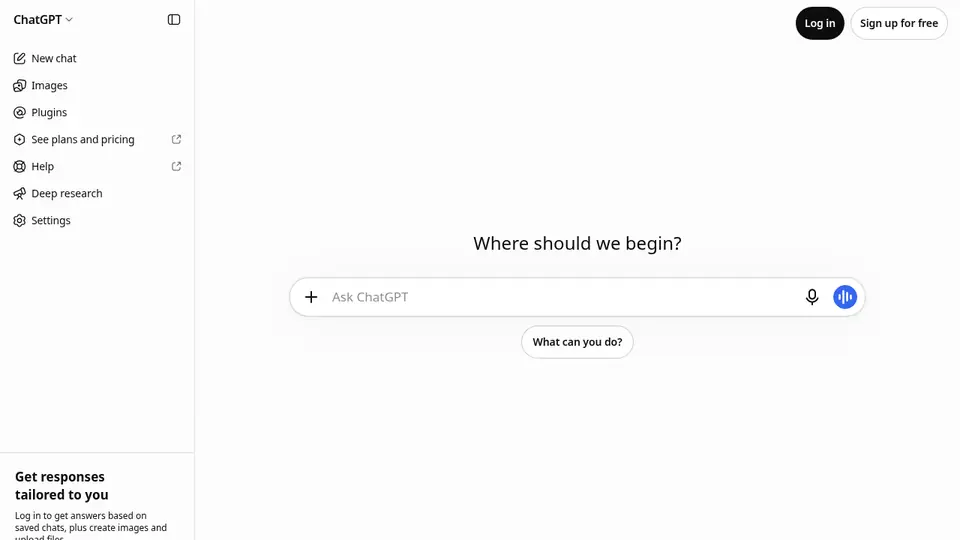
Steps from the official help pages listed in Lesson 1's sources.
Lesson 1: Get started
ChatGPT is OpenAI's general assistant.
- Rewrite a message for tone
- Summarise a document
- Make an image
- Run a deep research report
- Set up a scheduled task
Lesson 2: Keep work together with Projects
Projects keep related chats, files and instructions in one place, so you don't have to re-explain the background every time.
- Select New project in the sidebar.
- Enter a project name, then pick an icon and colour.
- Add reference material: upload PDFs, spreadsheets, docs or images, or paste text.
- Open the more options menu (•••) → Project settings and add instructions for this project only.
- Start new chats from inside the project so they use its files and instructions.
- To keep a useful answer, open the message menu and choose Add to project sources.
Lesson 3: Personalise answers with custom instructions and memory
Custom instructions are standing guidance you write once (your role, tone, formats).
- Web or desktop: Settings → Personalization, make sure Enable customization is on, then type in the Custom Instructions field.
- iOS or Android: Settings → Customize ChatGPT, turn on Enable customization, then add your instructions.
- For memory: Settings → Personalization → Memory to see the controls available on your account.
- In a chat you can say “Remember that…”, ask “What do you remember about me?”, or say “Forget that.”
- Review what's saved from time to time and delete what you no longer want used.
Common beginner mistakes
- Assuming a locked chat is private from training: OpenAI says locking doesn't change retention or model-improvement settings.
- Giving thumbs-up/down on a sensitive chat: feedback can let that whole conversation be used for training.
- Picking Go without reading the note that it may include ads (US price $8/mo).
- Expecting annual billing on Pro: OpenAI lists Pro as monthly billing only.
Privacy
- With “Improve the model for everyone” off, new chats aren't used to train OpenAI models; they still stay in your history (turning it off deletes nothing).
- Temporary Chats aren't used to improve models but may be kept up to 30 days for safety.
- Business, Enterprise, Edu and ChatGPT for Healthcare content isn't used for training by default.
More: Is my data safe?
Also: ChatGPT features and prices · Cost calculator · All tutorials