
Home › n8n tutorial for beginners
n8n tutorial for beginners
Last checked
n8n is a workflow automation tool: you connect a trigger (a schedule, a form, a message) to nodes that fetch, change and store data, including AI Agent nodes. You can self-host the free Community Edition or use n8n Cloud.
n8n features and prices · Cost calculator · All tutorials
Get started
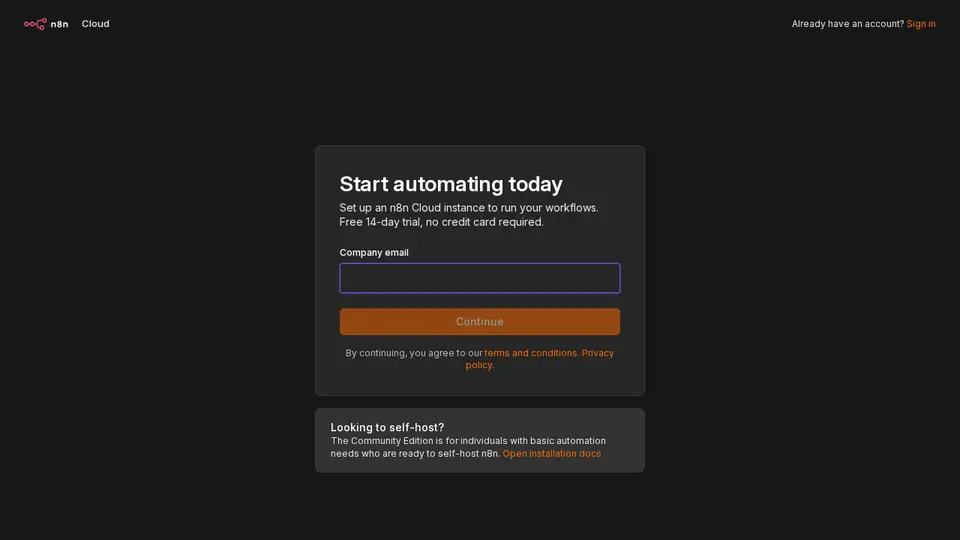
- Choose how to run it: sign up for an n8n Cloud free trial, or self-host the free Community Edition.
- Log in, select Personal in the left menu, then Create workflow.
- Select Add first step and pick a trigger, for example On a schedule.
- Add nodes after the trigger with + (for example HTTP Request), and use Execute step to test each one.
- Test the whole workflow with Execute workflow, then select Publish so it runs on its own.
Free plan, paid plans and prices (US$)
- Community Edition: Free. Free self-hosted version on GitHub (source, checked Nov 5, 2026)
- Starter: check vendor (prices not listed in US$). 5 concurrent executions; 1,600 Assistant credits (source, checked Nov 5, 2026)
- Pro: check vendor (prices not listed in US$). up to 50 concurrent executions; admin roles (source, checked Nov 5, 2026)
- Business: check vendor (prices not listed in US$). SSO/LDAP, Git, queue mode (source, checked Nov 5, 2026)
- Enterprise: check vendor. Custom — contact sales (source, checked Nov 5, 2026)
Prices from the vendor's official pages on the dates shown; before tax and subject to change. Add up seats and plans with the cost calculator.
Your first 5 tasks, with example prompts
- Build n8n's first-workflow tutorial
Schedule Trigger at 8 am → HTTP Request to n8n's sample weather API → Edit Fields to write a one-line report → Data table to save it.
n8n says this takes about 15 minutes with no accounts, API keys or coding needed. - Use expressions without code
In Edit Fields, drag fields from the input panel to build: “The temperature in {{ $json.city }} is {{ $json.temp_c }}°C.”Dragging a field in switches the value to an expression. - Ask n8n Assistant to build it
Every weekday at 9 am: get new rows from my sign-up sheet and post a summary to my team chat.
n8n Assistant is in Preview and may change. - Add an AI step
Add an AI Agent node that turns each new support email into: category, urgency, one-line summary.
AI Agent nodes and MCP are listed among n8n's features. - Keep a log
Save each run's result as a row in a Data table so you have a history after the workflow finishes.
Settings worth changing
- Credentials: add them once per app you connect, then reuse them in nodes.
- Self-hosted: telemetry is on by default and is turned off with environment variables (there's no in-app switch).
Common beginner mistakes
- Forgetting to publish: while building, you run the workflow yourself; the schedule only runs it after you publish.
- Leaving two copies published: unpublish the old one so both don't run at the same time.
- Comparing prices in US$: n8n lists its Cloud plan prices in euros only, so check its pricing page.
Privacy notes
- On a self-hosted instance, the data flowing through your workflows stays on your servers and n8n never receives it.
- Self-hosted telemetry is pseudonymous and doesn't include credentials or your workflow data.
- n8n Cloud and paid-license terms are separate; read them before you connect business apps.
More detail: Is my data safe?
When to pick another tool
- Building agents inside Microsoft 365 or Salesforce instead? See n8n vs Copilot Studio and Agentforce vs n8n.
Tasks where n8n is listed: App-to-app workflow · Scheduled data report · Email triage agent · Alert-to-ticket automation · Order notification automation.
Sources (official pages)
Written from the vendor's official documentation and pricing pages; we don't run hands-on tests. Features vary by plan, country and device.