
Home › Meta AI tutorial for beginners
Meta AI tutorial for beginners
Last checked
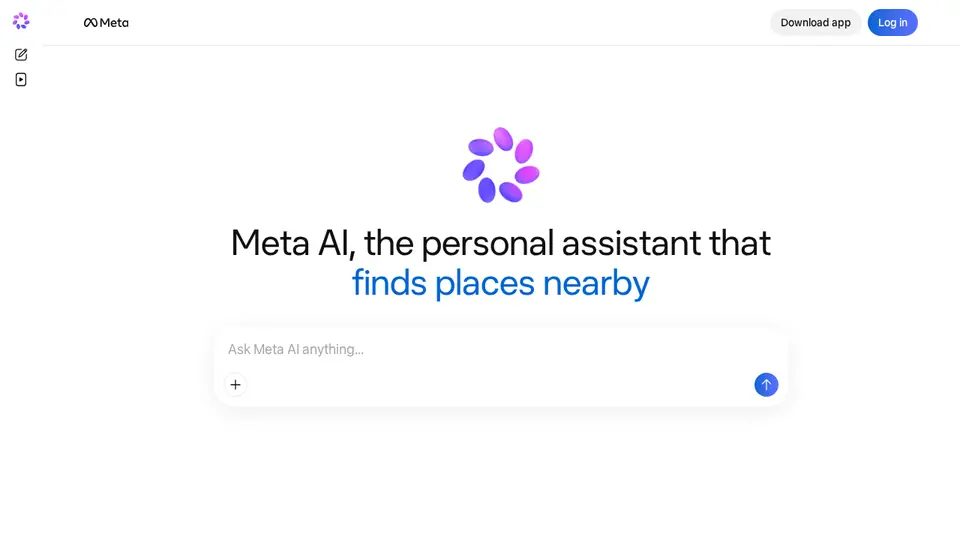
Meta AI is free and built into WhatsApp, Instagram, Messenger and Facebook, as well as its own app and Ray-Ban Meta glasses. It can search the web, read files and PDFs, create images and talk by voice.
Meta AI features and prices · Cost calculator · All tutorials
Get started
- Download the Meta AI app (not available in every country), or open Meta AI inside WhatsApp, Instagram or Messenger.
- Log in with a Meta account (Facebook, Instagram, email or phone) and choose a Meta AI username. Your Meta AI profile is public.
- Tap “Ask Meta AI…”, then type, or tap the mic to talk.
- Pick a mode (for example Instant or Thinking) and ask follow-ups.
Free plan, paid plans and prices (US$)
- Meta AI (free): Free. Free with a daily usage limit; when you reach it you can wait for it to refresh or upgrade (source, checked Oct 23, 2026)
- Meta One Core / Premium: check vendor. Paid plans with more AI usage than free; in limited testing and not available everywhere (source, checked Oct 23, 2026)
Prices from the vendor's official pages on the dates shown; before tax and subject to change. Add up seats and plans with the cost calculator.
Your first 5 tasks, with example prompts
- Plan something in a group chat
In a WhatsApp group: @Meta AI suggest 3 easy dinner recipes for 6 people under $40 total, with a shared shopping list.
Meta AI works inside WhatsApp, Instagram and Messenger. - Make an image
Create an image of a birthday cake shaped like a soccer ball, cartoon style, for a party invite.
- Read a PDF
Summarise this school newsletter PDF: dates, what to bring, and anything I need to sign.
File and PDF analysis is listed among its features. - Ask with Thinking mode
Thinking mode: I have $300 a month to save. Compare paying off a 19% credit card first versus building a $1,000 emergency fund.
- Talk it through by voice
Tap the mic: help me practise ordering food in Spanish at a restaurant, and correct my mistakes gently.
Settings worth changing
- Menu → Settings → Data & privacy → Manage your information: manage or delete chats and media.
- Your Meta AI username and profile are public, so choose a name you're comfortable sharing.
Common beginner mistakes
- Sharing private details: Meta says it uses your AI interactions to improve AI at Meta, and we found no general training opt-out in the app.
- Expecting unlimited use: Meta AI is free with a daily limit; when you reach it you wait for it to refresh or upgrade.
- Assuming deleting chats removes public posts: deleting chats and media doesn't delete public posts.
Privacy notes
- Meta may share messages with select partners when Meta AI can't answer.
- In some countries (Meta describes this right under GDPR for the EU and UK) you can object to your AI interactions and public posts being used to develop AI at Meta, using a form while logged in.
- Paid Meta One plans are in limited testing; prices aren't published.
More detail: Is my data safe?
When to pick another tool
- Want more control over training? See ChatGPT vs Meta AI and our Is my data safe? guide.
Tasks where Meta AI is listed: Chat in messaging apps · Generate an illustration · Summarize a long document · Language practice by voice · Meal plan and grocery list.
Sources (official pages)
- Meta AI help: get started
- Meta AI help
- Meta AI help: manage your information
- Meta AI help: usage limits and plans
- Meta: developing and improving AI at Meta
Written from the vendor's official documentation and pricing pages; we don't run hands-on tests. Features vary by plan, country and device.