
Home › Canva AI course: 3 beginner lessons
Canva AI course: 3 beginner lessons
Last checked
What it does
AI features inside the Canva design editor for making designs, images, docs and short video clips and for resizing and writing.
Made by Canva.
Sign up and log in
- Sign in at canva.com or in the Canva app.
- On the homepage, select Canva AI in the side navigation.
- Enter a prompt (or use the microphone), then choose a content type: Design, Image, Doc, Code or Video clip.
- Open the result in the editor and keep chatting with Canva AI in the side panel to refine it.
- On a computer, press / for Quick actions to reach features like Magic Write and Background Remover.
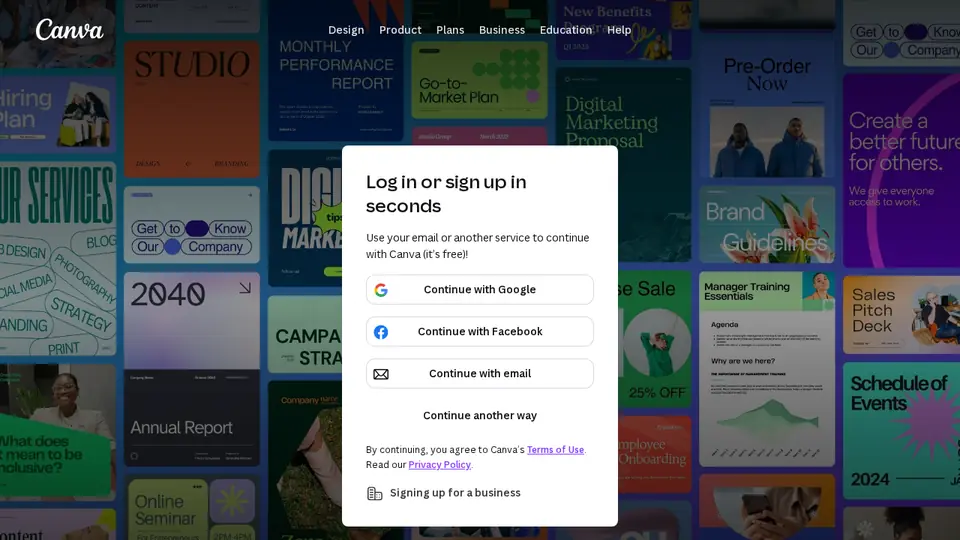
Steps from the official help pages listed in Lesson 1's sources.
Lesson 1: Get started
Canva AI (formerly Magic Studio) lives inside the Canva design editor.
- Generate a design
- Write with Magic Write
- Create an image from a reference
- Draft a doc
- Resize for every channel
Lesson 2: Write faster with Magic Write and Canva AI docs
Magic Write generates sentences, lists and outlines from a prompt inside your design or doc, and can write presentation notes and data for Canva Sheets..
- Open a design or Canva Doc.
- Choose Magic Write (on a computer, press / for Quick actions and type “Magic Write”).
- Pick a suggested prompt or type your own, then generate.
- Edit the text like any other text in your design.
- For longer docs, use Canva AI, which adds context-aware suggestions, web search and auto-formatting.
Lesson 3: Resize for every channel and stay on brand
Once one design works, Magic Resize turns it into other formats, and a Brand Kit keeps colours, fonts and logos consistent..
- Open your design and choose Resize (Copy & resize or Resize this design).
- Select the pages to change, then pick a target size or category.
- Select Resize, then check each new version for cropped text or images.
- Open the Brand panel, pick your Brand Kit and apply its colours, fonts and logos.
Common beginner mistakes
- Relying on Magic Write for current facts: Canva says it only uses information up to mid-2021 and may be inaccurate.
- Pasting very long text into Magic Write: input over 1,500 words can be cut off.
- Expecting unlimited AI on Free: Free includes limited AI uses.
Privacy
- Canva's privacy policy says it may use your activity, content and uploads to train its AI, and that you can manage this in Privacy controls.
- Canva says content from Teams, Business, Enterprise and Education users isn't used to improve AI features, and this can't be turned on.
- Canva Creators can opt out of having their templates used to train Canva's models.
More: Is my data safe?
Also: Canva AI features and prices · Cost calculator · All tutorials